

I came away from Creality Cloud feeling that it is most useful when treated as a companion for the whole 3D-printing process rather than as a single-purpose printer remote. It brings together model discovery, slicing, viewing, design, and printer control in one mobile workspace. That combination is genuinely convenient, especially when I want to move from an idea to a printable file without constantly switching between unrelated tools. At the same time, it is not a replacement for every desktop workflow, and its broad feature set can feel less focused than a dedicated slicer or a specialist 3D-modeling application.
The app is free to install, belongs to the tools category, and is developed by Creality Cloud. Its store presence is substantial, with an average rating of 4.5 from around 36 thousand ratings and more than 5 million installs. Those figures do not automatically make it right for everyone, but they do reflect that it has become a familiar option for people who use Creality’s ecosystem and want access to their projects away from a computer.
What using Creality Cloud feels like in practice
The first thing I noticed is that the app is organized around the way a maker actually thinks. I might begin by browsing for a model, inspect it in the 3D viewer, prepare it with the slicer, and then keep an eye on the print through remote controls. That sequence is more valuable than any individual feature because it reduces the number of handoffs between discovery and production.
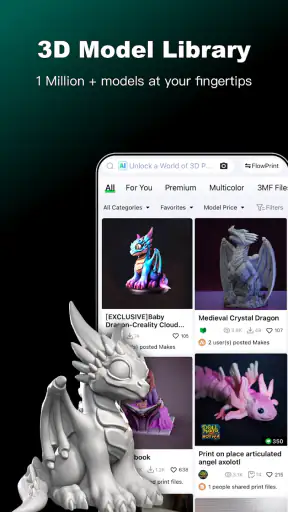
The model library is a practical starting point for anyone who does not want to create every object from scratch. I found it particularly useful for exploring ideas before committing time to design work. Being able to look at a model from different angles on a phone helps reveal obvious issues, such as thin sections, awkward overhangs, or a shape that will not fit the intended purpose. A mobile viewer cannot replace careful preparation, but it is a good first filter.
The 3D viewer also changes how I use the library. Instead of judging a thumbnail, I can rotate the object and think about how it will sit on the print bed. That small step matters because attractive images often hide practical problems. I recommend checking the underside, narrow points, and any enclosed areas before downloading or slicing. It is a simple habit, but it saves time later.
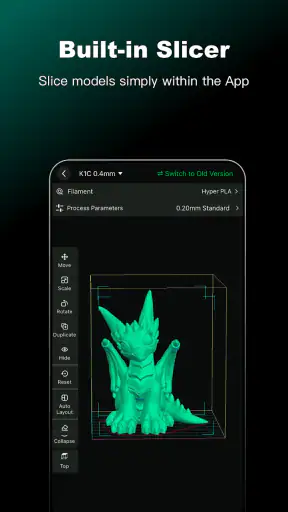
The built-in slicer is the app’s most important feature for people who want a mobile-first workflow. Slicing is the stage where a 3D model becomes instructions for a printer, so having it inside the same environment makes the process feel much less fragmented. I would use it for quick preparation, repeat jobs, or situations where I already understand the material and printer setup. For a new material or a demanding mechanical part, I would still take more time to inspect every setting rather than accepting a quick default.
That distinction is important. A slicer is not simply a save button. Layer height, supports, infill, walls, orientation, and material behavior can all affect the result. The app makes mobile preparation more accessible, but it does not remove the need for printing knowledge. Beginners may appreciate the shorter path, while experienced users may want the deeper control and visual feedback offered by a full desktop slicer.
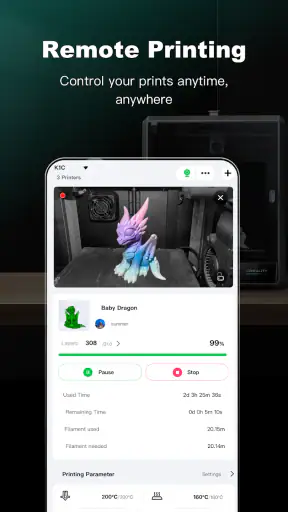
Remote printer control is where the app becomes especially useful in everyday life. I can imagine starting a print before leaving a workspace, checking progress from another room, or confirming that a job has finished without standing beside the machine. This is not just a novelty. A printer can take long enough that checking it periodically becomes inconvenient, and remote access makes that routine less disruptive.
My advice is to use remote control as a convenience layer, not as permission to ignore basic safety. I would still inspect the printer, bed, filament path, and surroundings before beginning a long job. A phone can show status and provide control, but it cannot replace a physical check when the machine is being used in a home or shared room.
A useful workflow for beginners
If I were introducing someone to the app, I would not begin by exploring every menu. I would choose a small, uncomplicated model from the library, open it in the viewer, and examine it from several angles. The next step would be a conservative slice intended to teach the relationship between model orientation, supports, and print time. Only after that would I move to remote control.
This approach avoids a common beginner mistake: treating the first successful upload as proof that the model is ready to print. The viewer encourages a visual inspection, while the slicer gives a chance to think about how the object will actually be built layer by layer. I find that combination more educational than downloading files blindly and troubleshooting after a failed print.
Another useful habit is to keep a small record of settings that worked. The app can help with the preparation stage, but the best result often comes from remembering which orientation and support choices suited a particular kind of object. For example, a decorative piece may tolerate a different balance between surface quality and speed than a bracket or replacement part. The mobile workflow is fastest when I already know what I am trying to achieve.
Where the all-in-one approach earns its place
Creality Cloud’s strongest argument is convenience across several connected tasks. Many 3D-printing users keep a library in one place, prepare files somewhere else, and monitor the printer through another tool. Each separate application may be excellent, but the overall routine becomes harder to follow. Here, the model library, 3D viewer, slicer, designer, and printer controls sit under one roof.
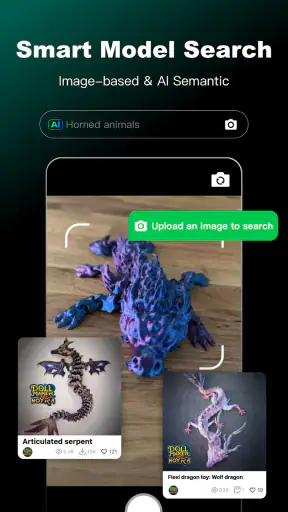
I also like the way that arrangement supports spontaneous projects. If I think of a useful object while away from my computer, I can browse ideas, inspect a model, and decide whether it is worth preparing. That is a different kind of value from raw technical power: the app lowers the friction between having an idea and doing something with it.
The designer adds another route for users who want to make adjustments rather than simply print existing files. I would use it for straightforward changes, personal touches, or early experimentation. It is a good fit for someone who wants to understand the shape of an object before moving to more advanced design software. For complex engineering work, however, I would choose a dedicated computer-based tool with more precise modeling controls.
The app’s audience is not limited to experts. A curious beginner can use it as a guided path into the hobby, while an experienced owner may value the ability to check a project or printer without opening a full desktop setup. That range is one of its real strengths, although it also explains why some screens may feel more ambitious than deeply specialized.
The weakness: convenience does not equal complete control
My main reservation is that a phone is still a phone. Even when the app brings several serious functions together, the smaller screen makes detailed inspection and precise adjustments less comfortable than on a computer. I would be happy preparing a familiar print from a mobile device, but I would hesitate to rely on it alone for a difficult model where small mistakes could waste material or many hours of machine time.
The same trade-off affects the designer. Mobile design can be approachable because it feels immediate, but precision work benefits from a larger display, a mouse or other accurate input, and a more spacious interface. If your goal is professional CAD, intricate assemblies, or exact dimensional work, Creality Cloud should be viewed as an accessible companion rather than your primary design studio.
There is also a learning curve caused by the app’s breadth. A person opening it for the first time may see several possible directions: browse models, design something, slice a file, view an object, or control a printer. That flexibility is useful once I understand the workflow, but it can initially feel less clear than an app built around one job. I recommend choosing a single task at a time instead of trying to learn the entire platform in one session.
In-app purchases range from $0.99 to $399.99 per item. That makes it important to pay attention to which parts of the experience are free and which optional items or services may involve payment. The app itself is free, but “free to install” should not be confused with every possible feature or piece of content being included without cost. I would review any purchase screen carefully before confirming it, particularly if the app is being used on a shared family device.
The app is rated for Everyone, which makes it approachable for a broad audience. Still, the practical responsibility of operating a 3D printer remains with the user. The age label describes the app’s content, not the need for sensible supervision around hot equipment, moving parts, or unfinished prints. That is a distinction parents and first-time makers should keep in mind.
How it compares with the usual alternatives
Compared with a dedicated desktop slicer, Creality Cloud wins on mobility and integration. I can move from a model to a prepared job without being tied to one computer, and remote printer access is more naturally connected to the rest of the workflow. The desktop alternative is usually better when I need a larger preview, detailed parameter control, or careful troubleshooting.
Compared with a standalone model-library app, Creality Cloud is more practical because it does not stop at inspiration. I can inspect an object and continue toward printing instead of downloading it and rebuilding the process elsewhere. The trade-off is that a specialist library may offer a more focused browsing experience, while this app divides attention between discovery, preparation, design, and control.
Compared with a dedicated 3D-design application, the built-in designer is easier to approach for quick edits and experimentation, but it is not the option I would choose for demanding precision. A separate design tool makes more sense when dimensions, constraints, and repeatability are central. Creality Cloud makes more sense when the design is only one step in a wider print workflow.
That comparison leads to a clear rule of thumb. If you want one mobile hub for exploring models and managing compatible printing tasks, this app is compelling. If you want the deepest possible control over slicing or modeling, use it alongside specialist software rather than expecting it to replace everything.
Who will get the most from it
I would recommend Creality Cloud to people who own a Creality printer and want a more connected routine. It is particularly suitable for beginners who need a visible path from model discovery to a physical print. The app also suits hobbyists who frequently move between rooms, workspaces, or locations and do not want every task tied to a desktop computer.
It can be helpful for families or classrooms introducing 3D printing, provided an experienced person handles the machine setup and safety checks. The viewer and library can make the hobby easier to explain, while the slicer gives learners a chance to see how a digital object becomes a print job. I would still introduce the controls gradually rather than handing over every function at once.
It is less suitable for someone who has no interest in browsing shared models, does not use a compatible Creality-centered workflow, or expects a professional CAD and slicing environment on a phone. If your projects depend on highly exact dimensions, advanced experimentation, or extensive desktop automation, another tool will probably be more comfortable as the main workspace.
For an everyday scenario, imagine preparing a small replacement part after work. I would first search the library for a starting point, rotate it in the viewer to check the shape, and decide whether a simple adjustment in the designer is enough. I could then slice it, send it toward the printer workflow, and check progress later rather than repeatedly returning to the machine. The benefit is not that every step becomes effortless; it is that the gaps between steps become smaller.
Version, access, and long-term practicality
The current version is 7.3.19, and the app runs on Android 7.0 or later. That makes it accessible to users who are not carrying a very recent phone, although the quality of the experience will still depend on the device’s screen, performance, and connection. I would keep the app updated when possible because a platform combining viewing, slicing, design, and printer management benefits from ongoing maintenance.
Creality Cloud was released on March 27, 2020, so it is not a brand-new experiment. Its continued presence, broad install base, and rating suggest that it has found a durable role for many makers. I would not judge it solely by popularity, though. The right question is whether its connected workflow matches the way you print. For me, it does when convenience and remote access matter more than maximum technical depth.
After using the app as an all-in-one 3D-printing companion, my verdict is positive but specific. Its strongest feature is not any isolated tool; it is the way the library, viewer, slicer, designer, and printer controls support a single mobile journey. That makes it easier to turn a spare idea into a planned print and easier to keep track of a job once it starts.
My recommendation is simple: choose Creality Cloud for connected, mobile-friendly printing, but keep a dedicated desktop tool available for demanding work. Beginners will appreciate the guided path, while experienced users will value the convenience of checking projects and printers away from the computer. If you expect a phone app to deliver the same precision and depth as specialist desktop software, you may be disappointed. If you want a practical bridge between digital models and real-world printing, it earns a place in the toolbox.


